Traverse Standard v11.0
Enter Material Requisitions
Use the Enter Material Requisitions function to enter, return, change, and delete material requisitions.
Use the Print button on the toolbar to print online material requisitions and requisition returns.

To create a new material requisition:
- Click the New button on the toolbar. The system will generate a Transaction No.
- Select a Location ID. This becomes the default Location ID for the Item Detail section of the screen.
- Accept or edit the date the requisition is placed in the Date Placed field.
- Accept or edit the date the item is needed in the Date Needed field.
- Enter any Notes about the requisition. The notes are printed on the material requisition.
- Select the Requisition Type: material requisition or material requisition return.
- Enter a Requisition Number. This field is required.
- Enter the name of the person who made the requisition request in the Requested By field.
- In the Date Shipped field, enter the date the item is shipped.
- Enter the general ledger Fiscal Period and Year, or use the default period and year corresponding to the Date Shipped field.
- Select a Ship To ID for the person receiving the shipment from the drop-down list.
- Enter a Shipping Method.
- The Requisition Total is displayed.
- In the Item Detail Section:
You can drag the items into a different order, then use the Resequence button to save the new sequence.
 Summary View: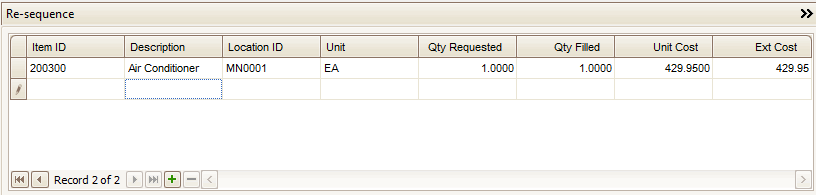
- Select the Item ID being requisitioned. The item Description is displayed.
- Accept or edit the default Location ID. Only locations with the selected item set up are displayed.
- Accept or edit the default Unit of measure.
- Enter the quantity of the item you are requesting in the Qty Requested field.
- Enter the Quantity Filled. The on-hand and available quantities are reduced by this number.
- The Unit Cost of the item is displayed. If the transaction is a material requisition return, you can change the unit cost.
- The Extended Cost of the item is displayed.
- Click the Save button on the toolbar to save your changes.
When you select a lotted, serialized, or lotted/serialized item, click the Lot/Ser No Entry button when it appears to view or enter lot and serial number information.
Detail View: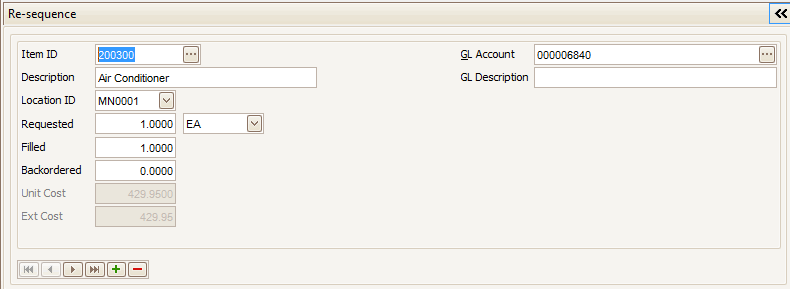
- Select the Item ID being requisitioned. The item Description is displayed.
- Accept or edit the default Location ID. Only locations with the selected item set up are displayed.
- Accept or edit the default Unit of measure.
- Enter the quantity of the item you are requesting in the Requested field.
- Enter the quantity Filled. The on-hand and available quantities are reduced by this number.
- Enter the quantity of the item that is Backordered. The quantity committed is increased by this number. You cannot enter a backorder quantity greater than the quantity still on demand (the quantity requested minus the quantity filled).
When you post, the backordered quantity also becomes the requested quantity.
- The Unit Cost of the item is displayed. If the transaction is a material requisition return, you can change the unit cost.
- The Extended Cost of the item is displayed.
- The default GL Account for material expense you selected in the Default-GL Accounts section in the Business Rules function is displayed for the requisition. If you are interfaced to General Ledger, you can select a different account number. If you are not interfaced to General Ledger, you can enter a different account number.
- Enter a GL Description of the transaction. The description is printed in the Material Requisitions Journal. If Inventory is interfaced with General Ledger and you elected to post detail to General Ledger in the Business Rules function, the description is posted to the GL Journal in the description field.
- Click the Save button on the toolbar to save your changes.
When you select a lotted, serialized, or lotted/serialized item, click the Lot/Ser No Entry button when it appears to view or enter lot and serial number information.
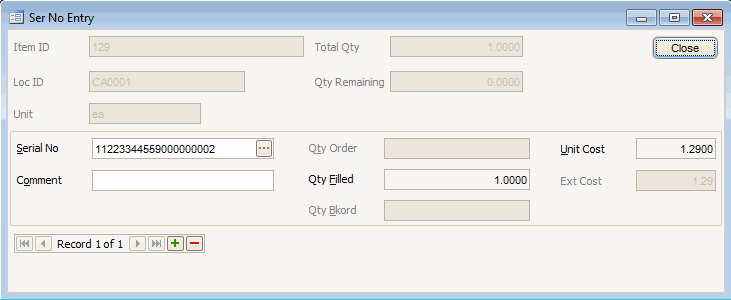
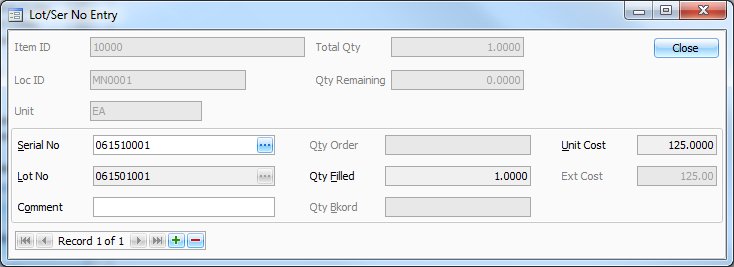
Entering Lot/Serial Number EntriesThe Lot/Ser No Entry screen appears when you enter a material requisition for a serialized, lotted, or serialized and lotted item , or when you select Lot No Entry, Ser No Entry, or Lot/Ser No Entry.
- The Location ID, Item ID, Unit of measure, Total Quantity, and the Quantity Remaining for the material requisition are displayed.
- Select a Serial Number if you are working with a serialized item.
- Select a Lot Number if you are working with a lotted item.
- Enter a Comment about the transaction.
- Enter the Quantity Ordered of the lot.
- The Quantity Filled is displayed, if applicable.
- The quantity backordered is displayed in the Qty Bkord field, if applicable.
- The Unit Cost is displayed, from your costing method selected in the Business Rules function.
- The Extended Cost is displayed.

Entering Project Information
Material Requisitions for items used in a project are entered into the Project Costing module into the Transactions function. Project information is no longer displayed in the Inventory Material Requisitions function. For more details on entering Material Requisitions for projects see Project Costing Transactions.
Editing a Material Requisition
- Select a material requisition to edit.
- Click the Update button, on the toolbar, to allow changes to the selected material requisition.
- Make your changes as necessary.
- Click the Save button on the toolbar to save your changes.
Deleting a Material Requisition
- Select a material requisition to delete.
- Click the Delete button, on the toolbar, to delete the selected material requisition.
- Click Yes at the "Are you sure you want to delete selected record(s)?" prompt.